 Get App
 Web Trading
 Backoffice
 IPO Apply
 Manage Account
 Wall
Wall Kosh
Kosh



Search for an answer or browse help topics
Step-by-Step Guide: Connecting Flattrade MCP to Claude AI
1. Log in claude.ai
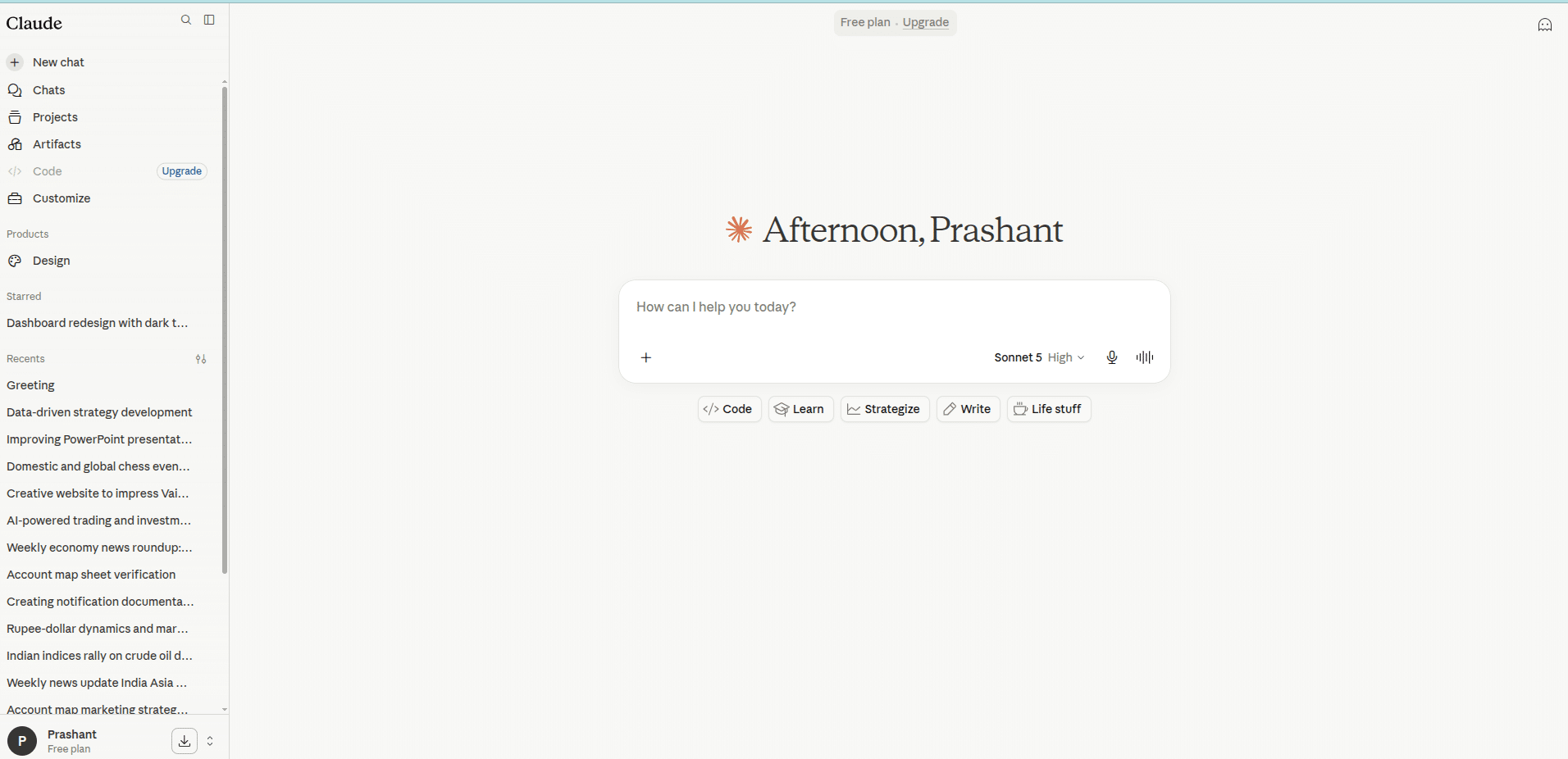
2. Click on your Profile Name / Icon located in the bottom-left corner of the Claude sidebar interface.
3. From the pop-up menu that appears, click on Settings.
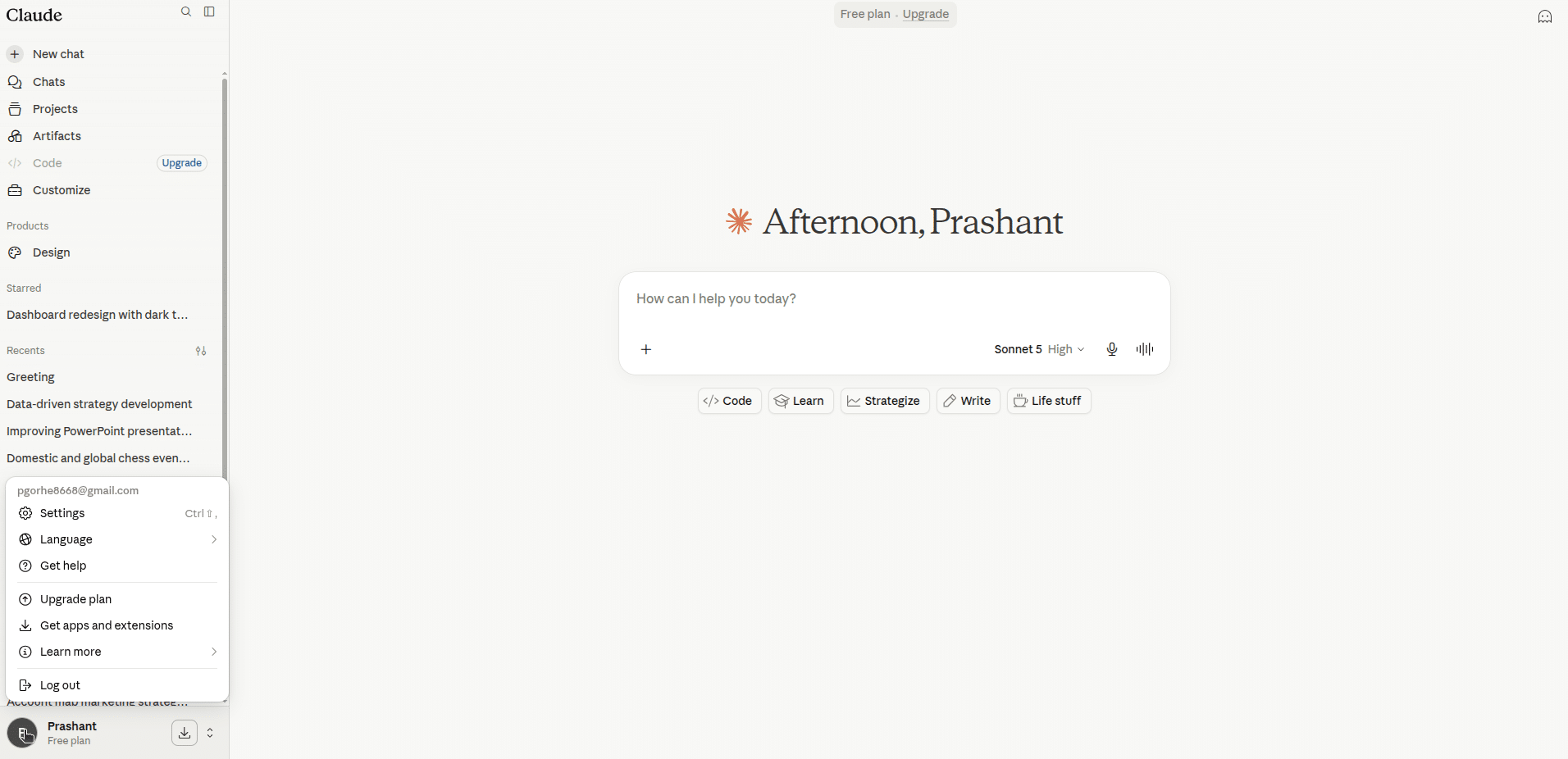
4. In the Settings window dashboard under the Customize header, select Connectors.
5. Click the Add dropdown button in the top-right corner of the Connectors pane.
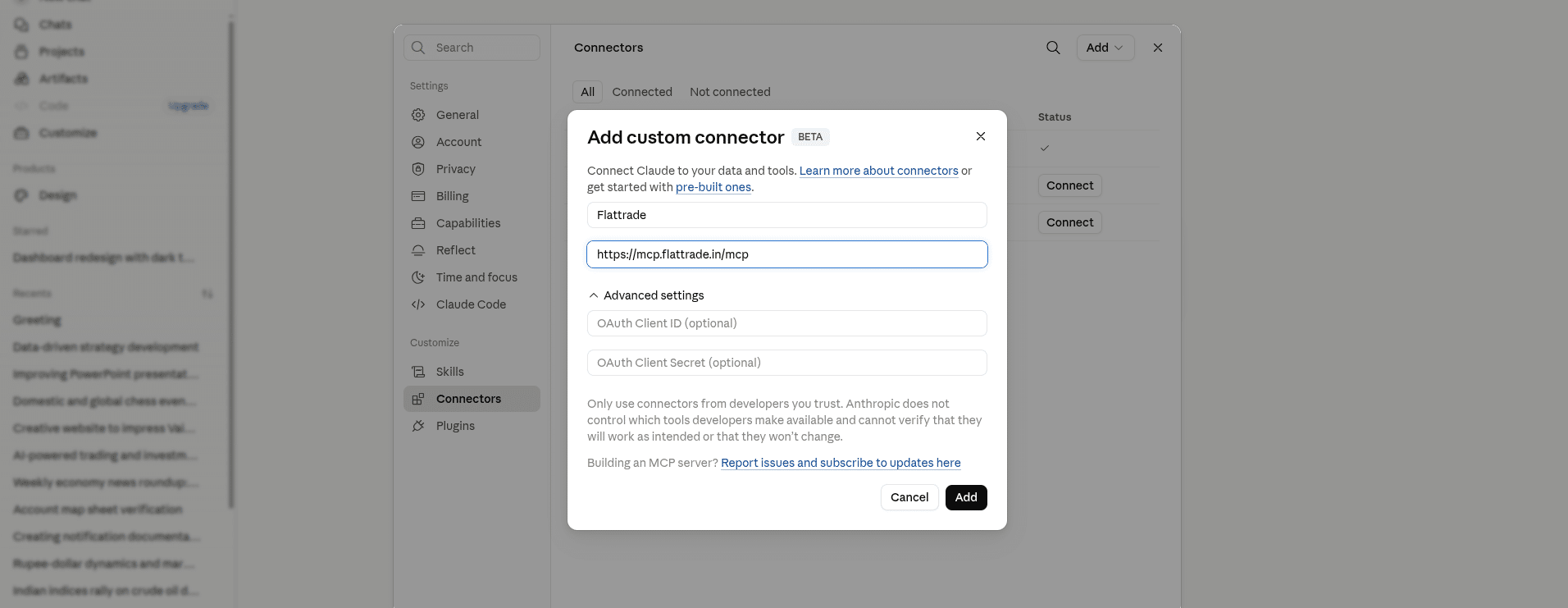
6. Enter Server Credentials: In the Add custom connector window, fill out the following fields:
Flattrade Remote MCP server URL: Type or paste your server URL –
https://mcp.flattrade.in/mcp
8. Click the Add button at the bottom.
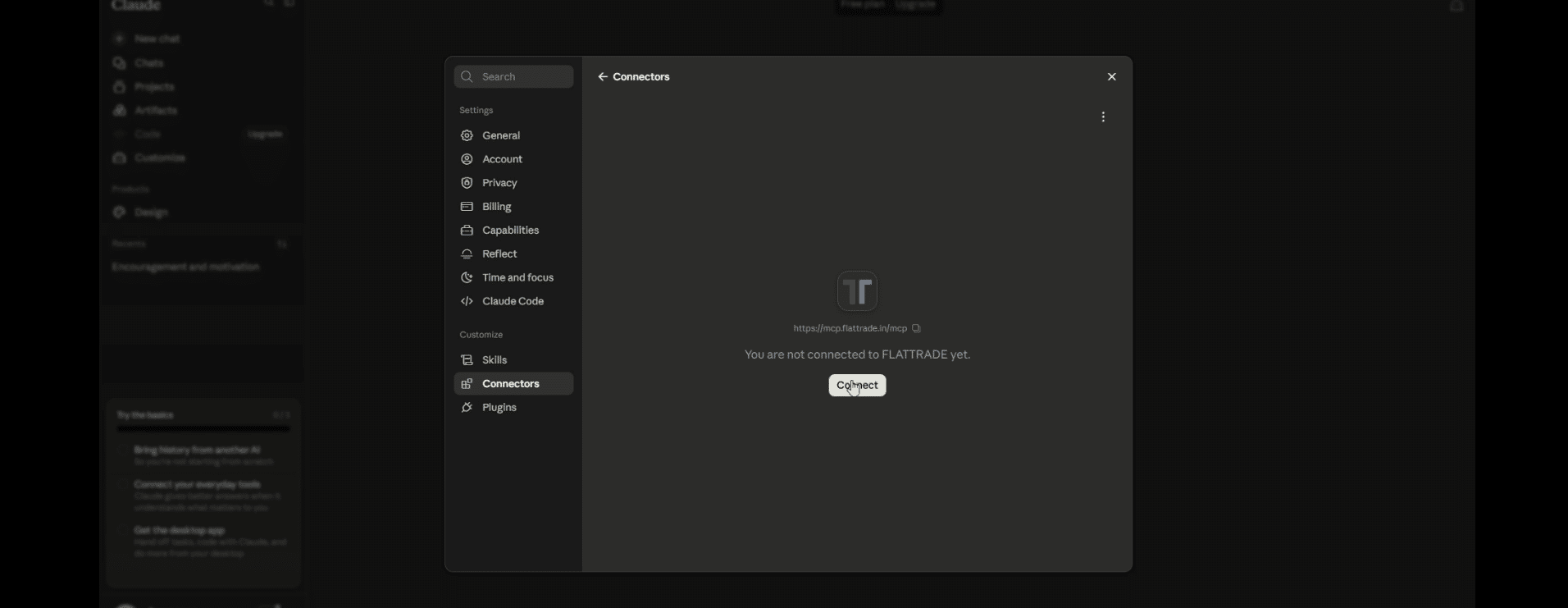
9. On next screen Click the prominent Connect button on the configuration page to link the server.
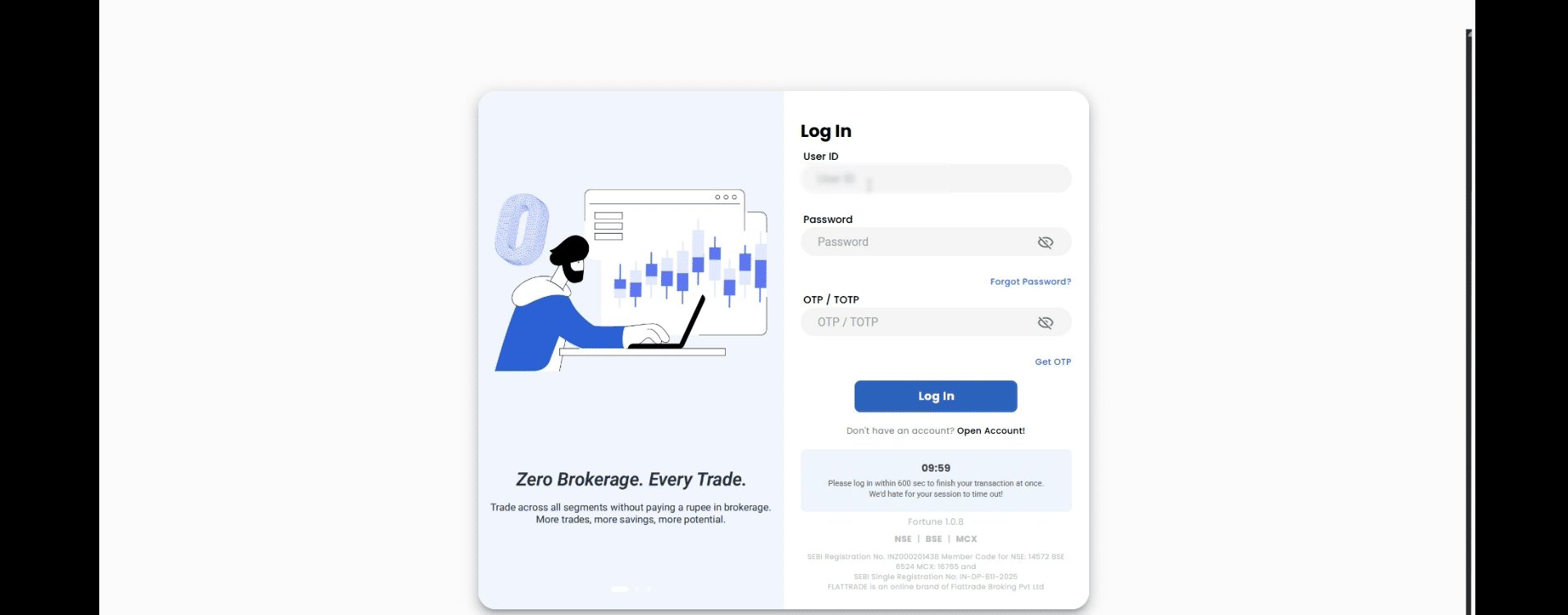
10. You will be redirected to the Flattrade login page. Enter your User ID, Password, and OTP / TOTP, then click Log in.
11. Review the access permissions and click Allow to complete the connection process.

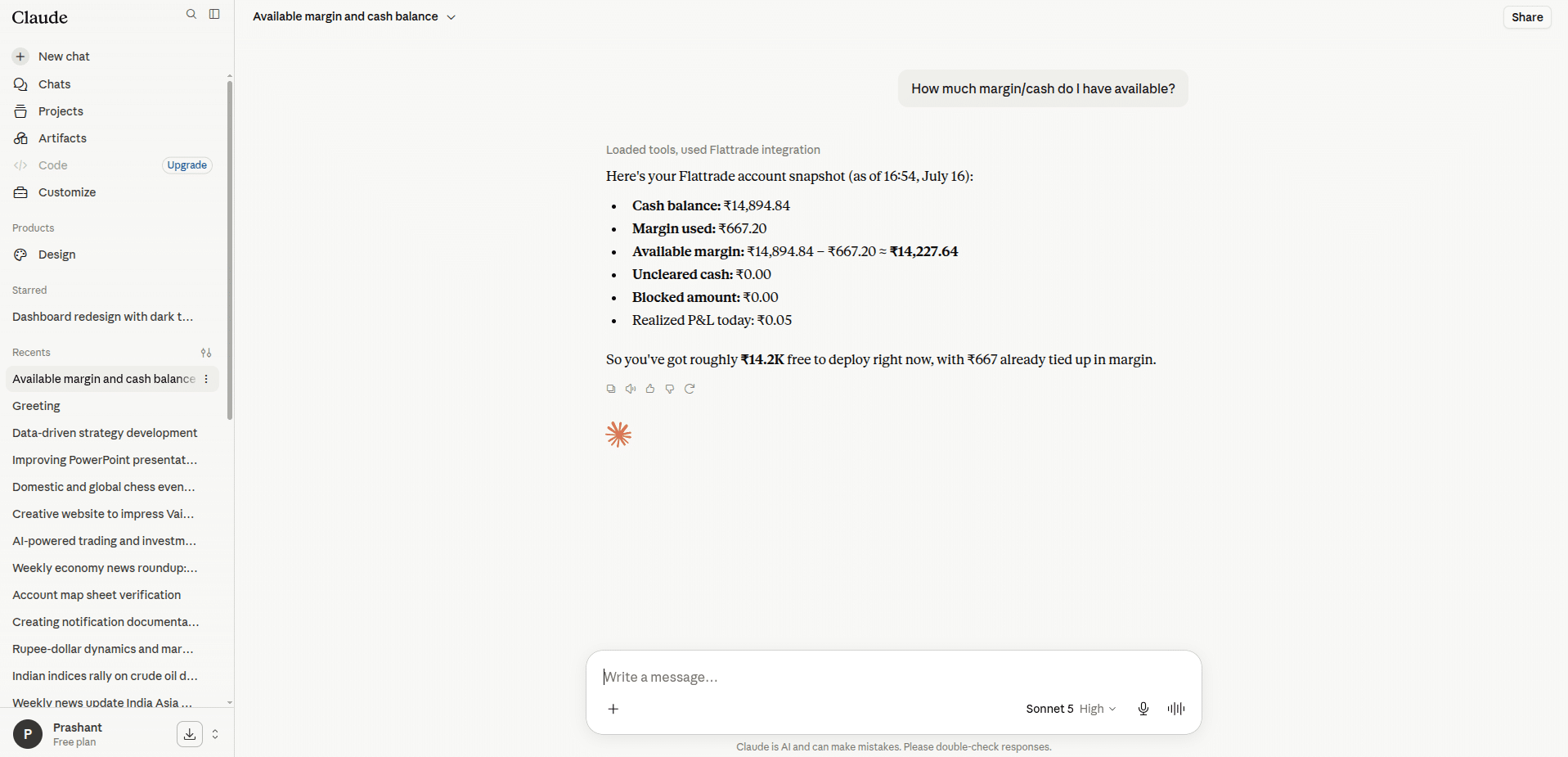
12. Once connected, return to your Claude chat session and type your request Questions like:
• “How much margin/cash do I have available?”
• “Show my MTF holdings”
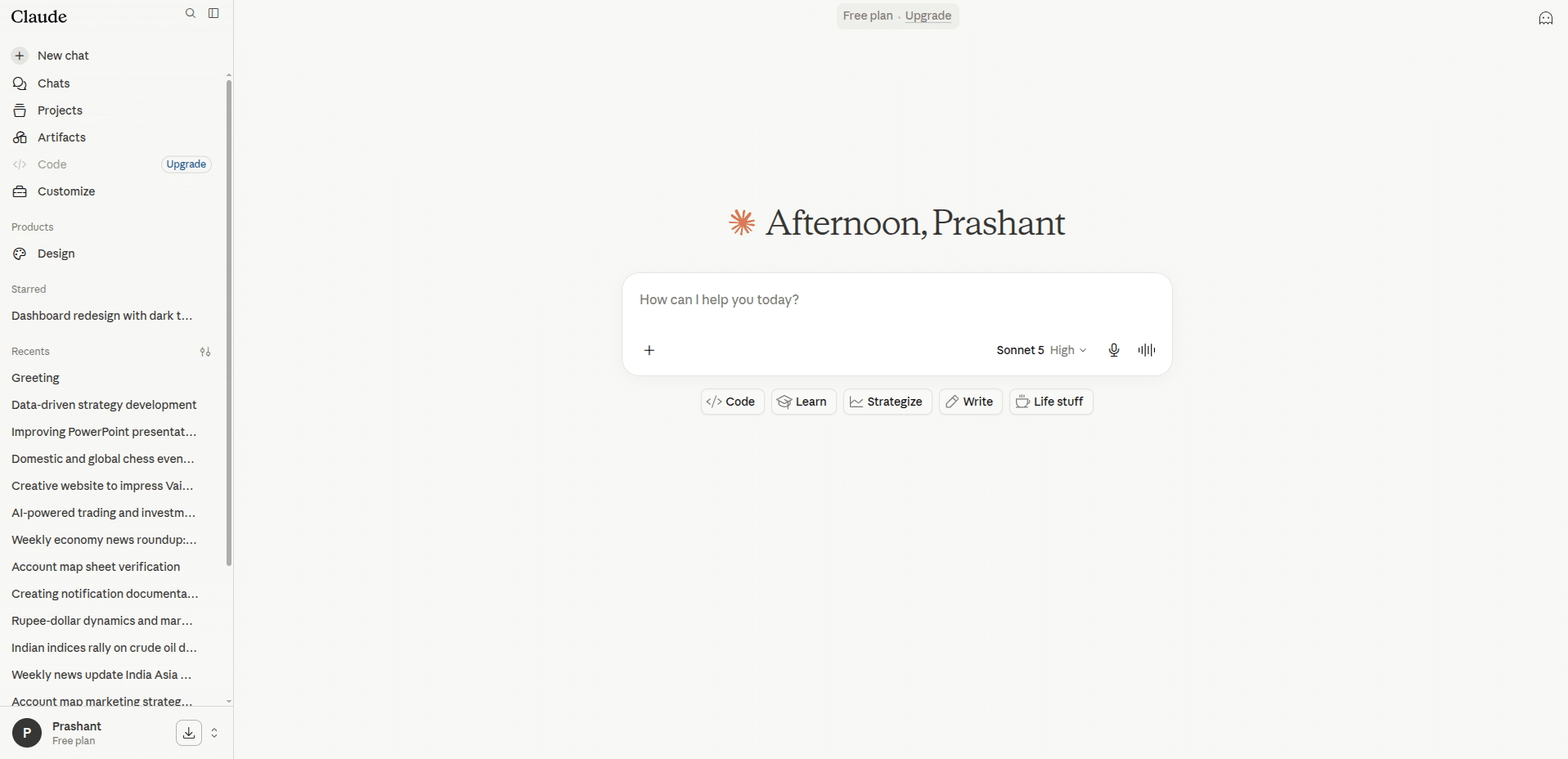
13. A prompt will appear stating “Claude wants to use Flattrade.” Click Always allow or Allow.

14. Claude will answer the questions you ask