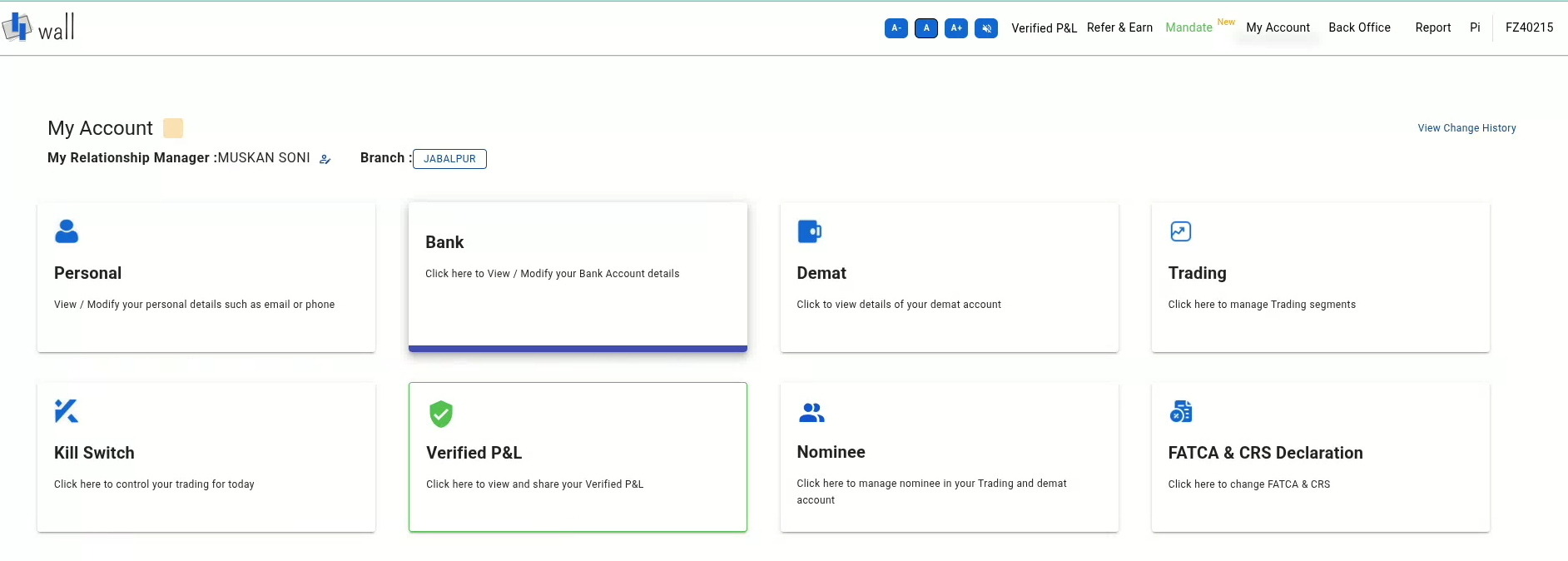
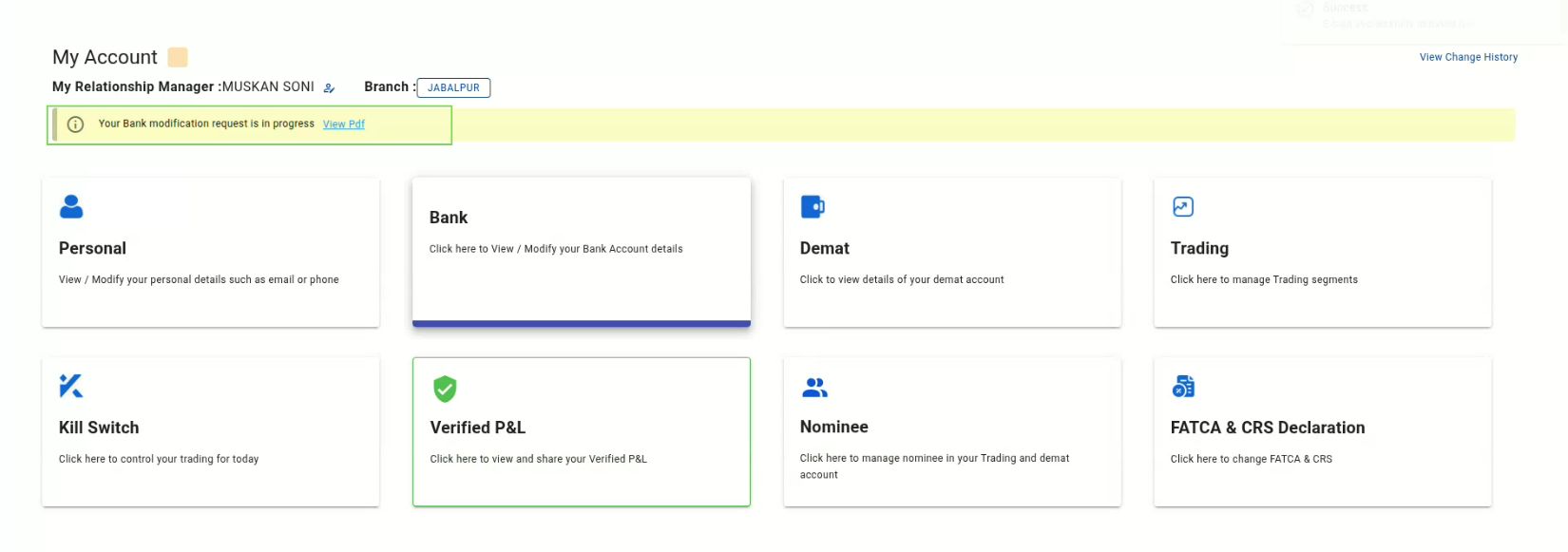
Log in to the wall.flattrade.in portal and navigate to the My Account dashboard.
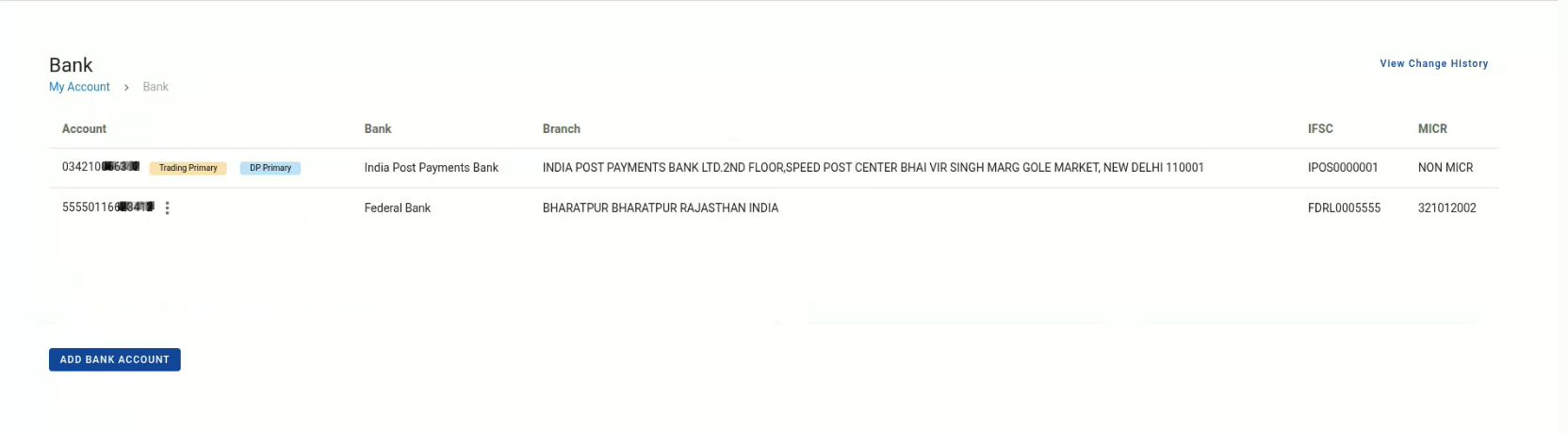
Click on the Bank section to view your linked accounts.
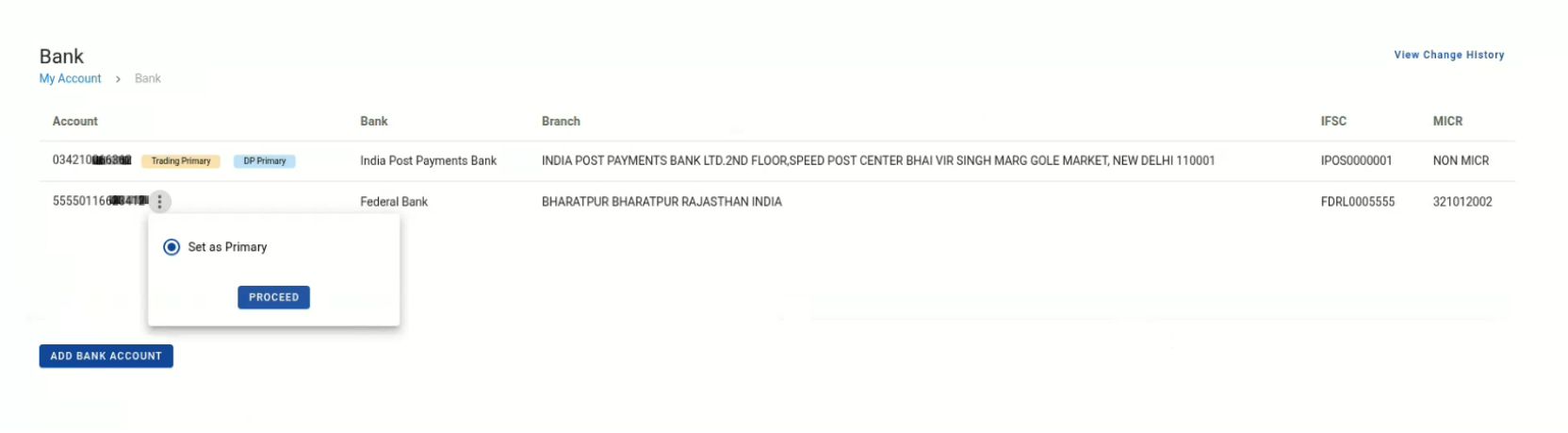
2. Find the secondary bank account you want to set as primary and click the three-dot menu button next to it.
3. Click the PROCEED button that appears next to “Set as Primary”.
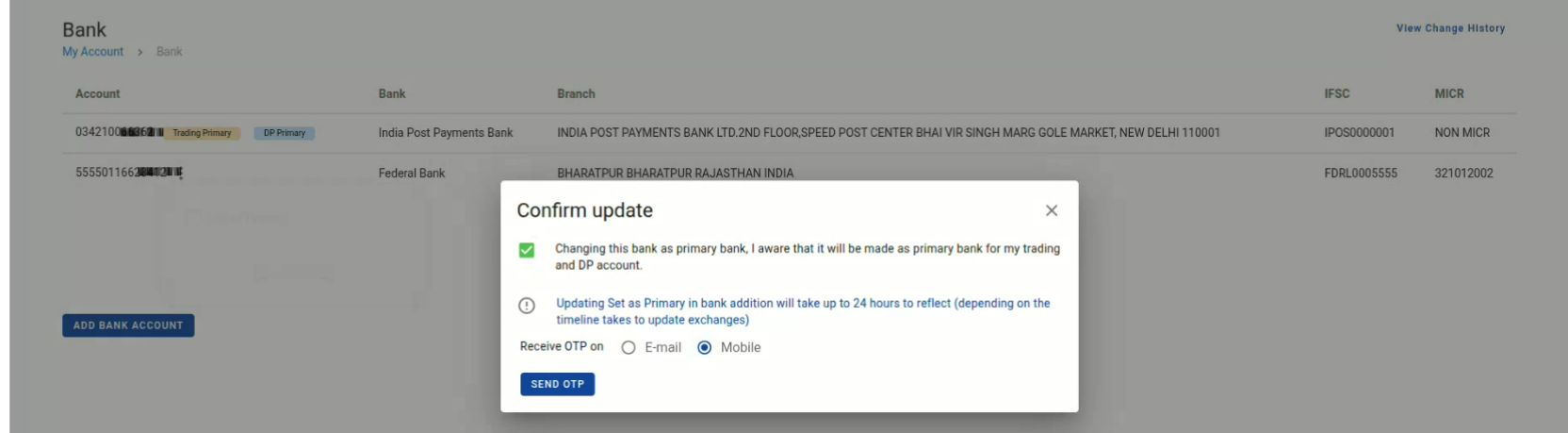
4. A “Confirm update” window will pop up. Check the box to confirm you understand this will change the primary bank for both your trading and DP accounts.
5. Select whether you want to receive the verification OTP via E-mail or Mobile, then click SEND OTP.
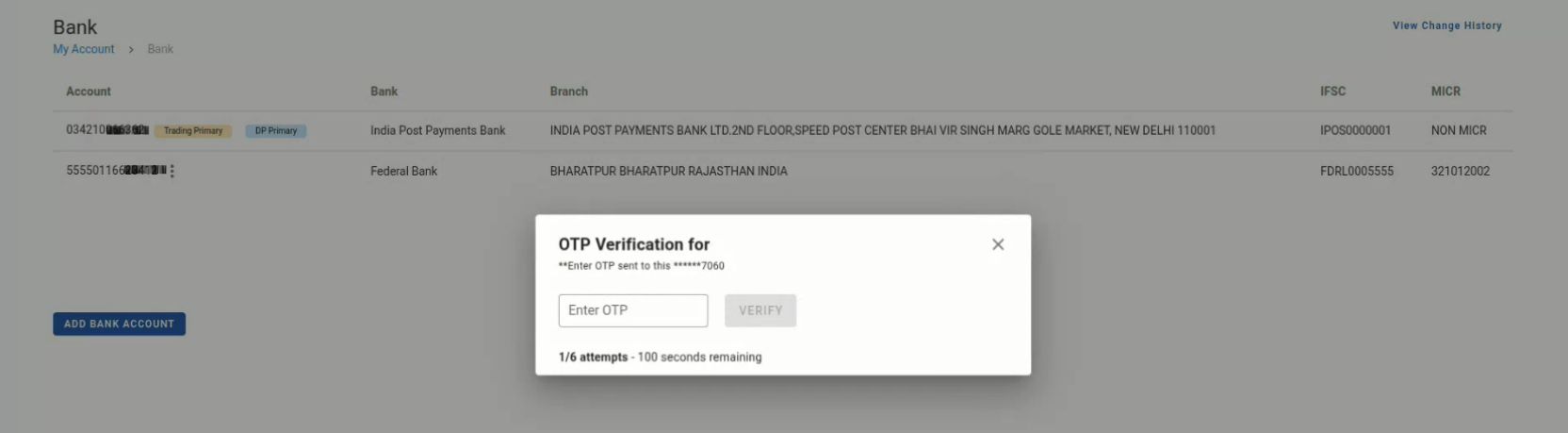
6. Enter the OTP you receive and click VERIFY.
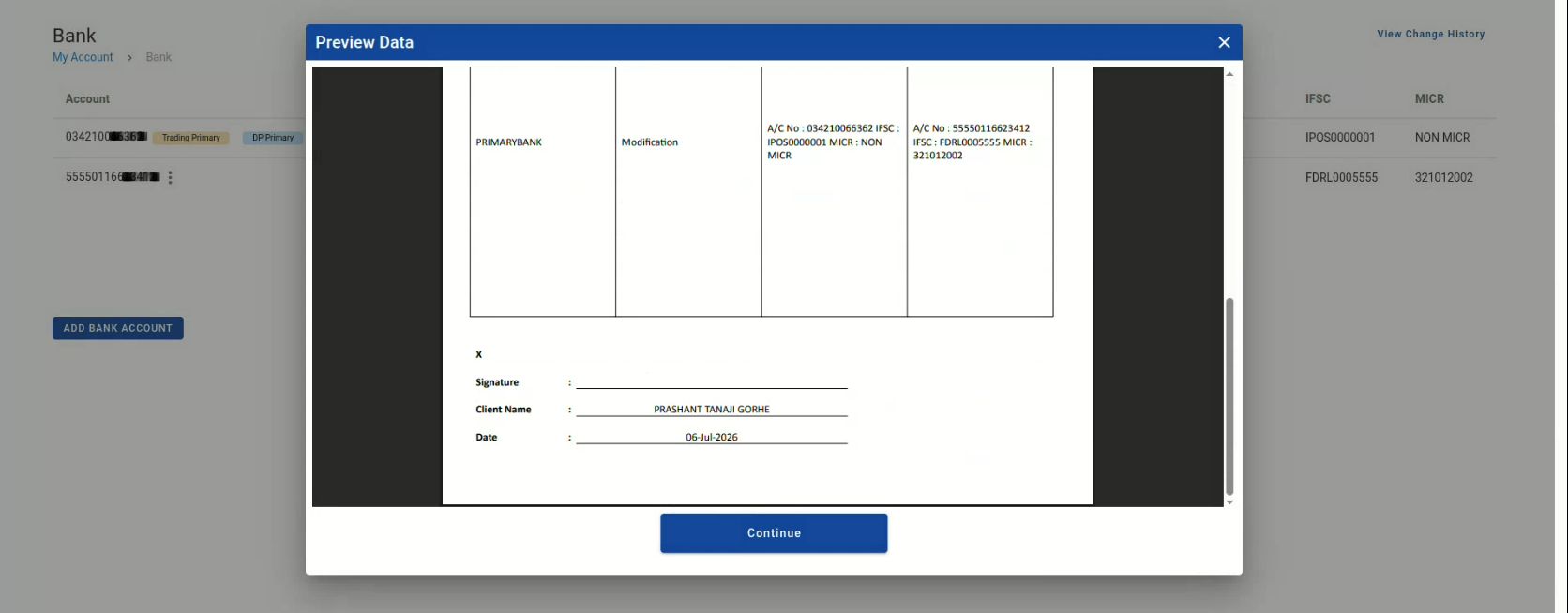
7. A “Preview Data” window will show your modification request form. Click Continue to proceed.
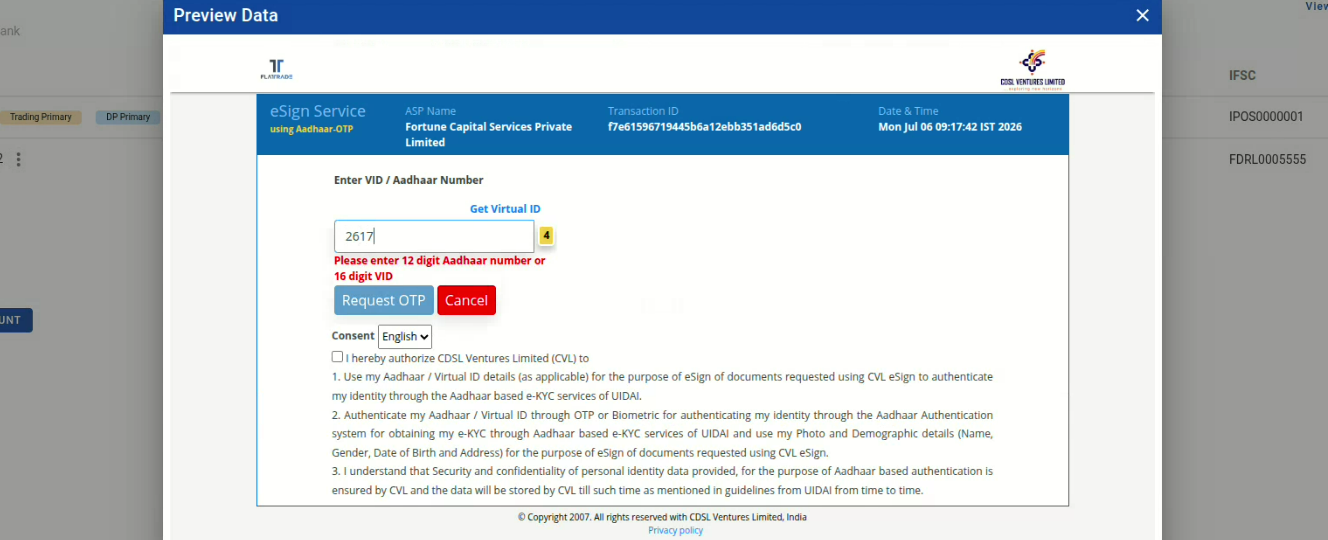
8. You will be redirected to eSign service. Enter your Aadhaar number or Virtual ID, check the consent box, and click Request OTP.
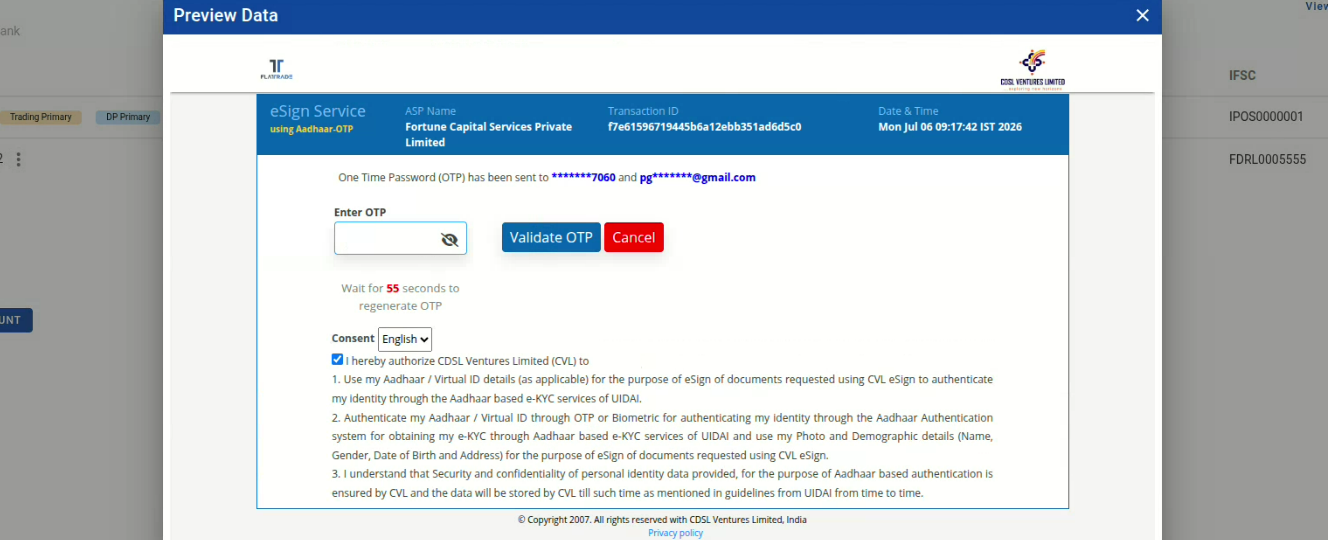
9. Enter the OTP sent to your Aadhaar-registered mobile number and click Validate OTP.
10. Once validated, your request is complete. You will see a message on your dashboard indicating the request is in progress.
Note: Updating your primary bank can take up to 24 hours to reflect, depending on exchange timelines.
Note: You cannot add or modify your bank details while your mutual fund order is in Pending status. You can either cancel the pending mutual fund order or wait for it to be automatically cancelled after 2 days.

 Get App
 Web Trading
 Backoffice
 IPO Apply
 Manage Account
 Wall
Wall Kosh
Kosh